
Contact Data
Part of CRM implementation
Preparing a clean CRM migration file
Prepare CRM import rows, identifiers, field values and relationships, then check a small import before moving the agreed data.
A clean CRM migration file gives each row an agreed purpose, a dependable way to recognise the intended record, and values the destination can accept. Build it against a field map before import. Hold uncertain identities and relationships for review rather than filling gaps with guesses.
Start with the destination and source
Write down what each file will create or update: contacts, accounts, opportunities or another agreed record type. Keep an unchanged source export with its date, and clean a working copy. If staff keep editing the old system, plan a later change extract or cutover reconciliation so the import does not miss their work.
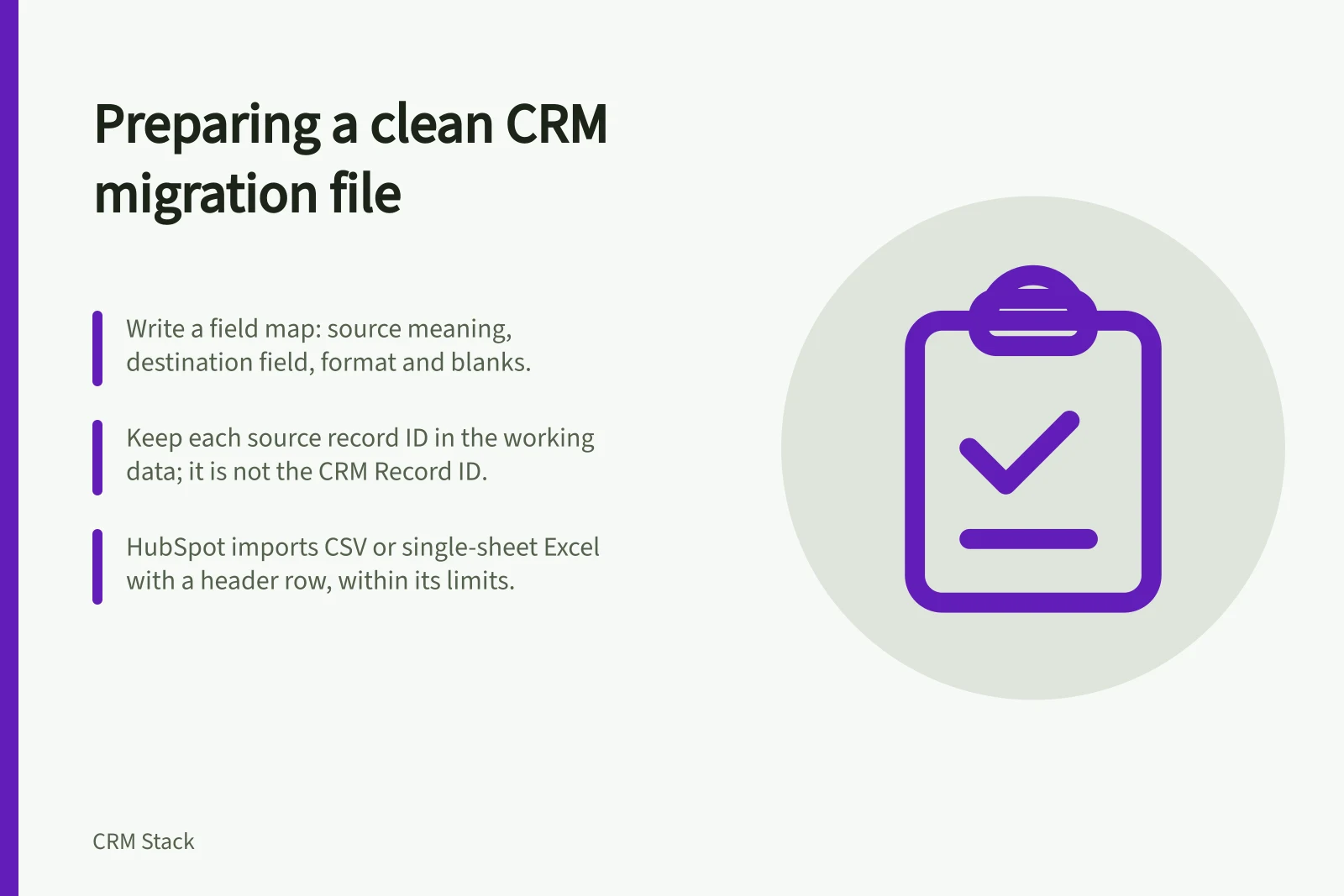
For every column, record its source meaning, destination field, expected format and treatment of blanks. A column called “customer” might mean a company in one list and a buying group in another; resolve that meaning before mapping it. Keep an exception list for values that cannot be mapped confidently.
File check / Question to answer
- Row purpose
- What will this row create, update or associate?
- Identity
- Which destination-supported value identifies an existing record?
- Relationship
- Which value links the intended contact, account or opportunity?
- Allowed value
- Do dates, owners and choices fit the destination field?
- Exception
- Who decides when a value or match is uncertain?
Preparing a clean CRM migration file
- Start with the destination and sourceWrite down what each file will create or update, keep an unchanged source export, and map every column.
- Check identities before combining recordsKeep source record IDs, test update keys for uniqueness, and mark likely duplicates for review.
- Make values fit the import routeStandardise agreed values, avoid filling gaps with guesses, and confirm the import tool's accepted formats.
- Check a small import and reconcile itImport representative new and update rows, inspect results and errors, then preserve decisions for later reconciliation.
File check questions
- Row purposeWhat will this row create, update or associate?
- IdentityWhich destination-supported value identifies an existing record?
- RelationshipWhich value links the intended contact, account or opportunity?
- Allowed valueDo dates, owners and choices fit the destination field?
- ExceptionWho decides when a value or match is uncertain?
Check identities before combining records
Keep each source record ID in the working data. Decide separately whether to store it in the CRM; a source ID is not the CRM's own Record ID. Check that the proposed update key is unique for the relevant record type and import route.
A shared mailbox may represent several people, and one company domain may cover several customer units. Names, email addresses and domains can point to likely matches. Appearance alone is not a reason to merge rows.
Mark likely duplicates for review. Compare source records and their relationships before choosing a surviving record. If records are consolidated, keep a mapping from retired source IDs to the surviving destination record for later reconciliation. Leave unresolved cases out of automatic merges or updates.
Make values fit the import route
Standardise agreed values, such as owner names, dates and status choices. Do not put today's date into an unknown customer decision date to satisfy a required field. If the destination needs information the source lacks, obtain it, use an approved exception value where the system allows one, or hold the row.
Check the actual import tool before saving the final file. HubSpot accepts CSV files and single-sheet Excel workbooks with a header row, subject to its technical and subscription-dependent limits.
In HubSpot, map file columns to corresponding properties. The import tool can create or update records and define relationships between them.
Check a small import and reconcile it
Choose representative new and update rows, an existing customer with a new opportunity, and a row with a missing value. Write down the expected result before importing them through a safe route available to your organisation. Keep an uncertain match out of the import until its owner decides what it represents.
Inspect the resulting records, field values and relationships, then review import errors. HubSpot lets you view error details, including the impacted columns and rows, and inspect errored values. Correct the working file and repeat the check where needed.
Preserve the final field map, source snapshot, exception decisions and the version actually imported. Give the CRM owner a way to reconcile later source changes without creating the same customer again. A broader audit after a bulk import is a separate task; file preparation is complete when the intended rows, values and links can be explained and checked.


