
Pipeline Design
Part of CRM reporting
Checking report filters before presenting results
Use a record-level checklist to verify CRM report dates, stages, owners, exclusions, visibility and totals before sharing a result.
Before presenting a CRM report, write down which records it should include. Check the period and audience. Then trace one deal that should appear and one that should not. A plausible total does not establish that the report answers the intended question.
Read the filters as one rule
Describe the population in plain language. For example: “Open deals in the agreed sales pipelines, owned by this team, with an expected close date in the selected period.” Compare that sentence with every active filter. Also compare the fields used for the measure. A title such as “Quarterly sales” does not tell readers whether the report uses create date, expected close date or won date.
Check the following:
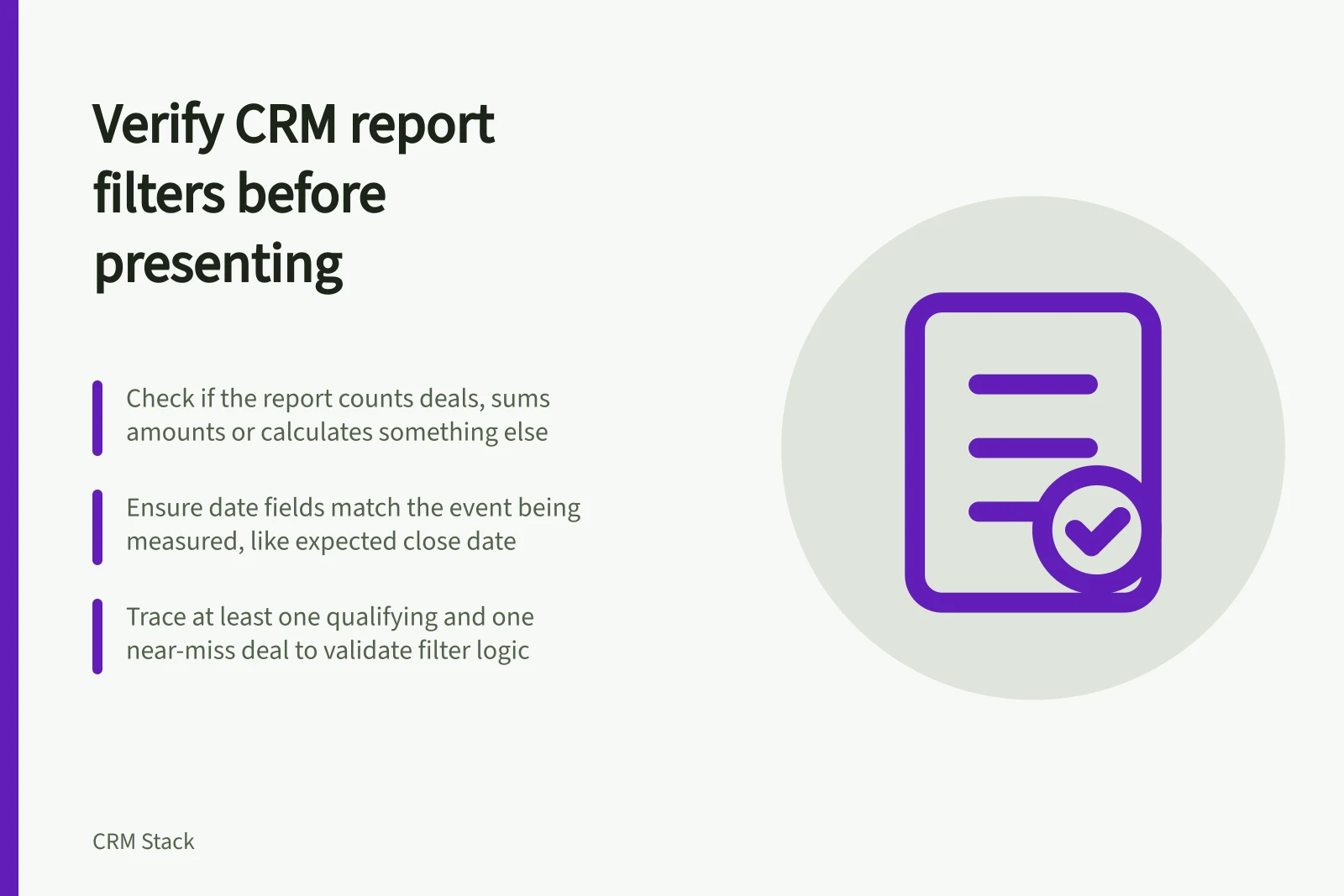
- Record and measure:Does the report count deals, sum deal amounts or calculate something else? If it includes related records, could one deal appear in several rows?
- Status and pipeline:Are open, won and lost deals treated as intended? Are the right pipelines included?
- Date field and range:Does the date represent the event in the question? Check both ends of the range and the report’s time zone where relevant.
- Owner and team:Does the filter use the intended owner field? Are transferred or unassigned deals excluded?
- Other conditions:Check deal type, forecast category and exclusions where used. Read AND and OR groups together as a single rule.
- Visibility and currency:Can the intended audience see the same records and amount basis?
Check blank values explicitly. Do not assume that a negative condition includes blanks. Treat how a blank field is handled as something to verify against the chosen filter, report and data source.
Trace records through the rule
Choose a known qualifying deal. Follow its ID, status, owner, relevant date and amount into the report. Then choose a near miss, such as an open deal just outside the date range or a won deal that should be excluded from an open-pipeline view. Write down each expected result before inspecting the report.
If a deal is missing, check its fields before widening the filter. HubSpot’s report-filter guidance recommends refreshing the report, comparing the report’s filters with a filtered deals view that includes the missing deals, and checking pipeline. It also mentions reviewing filter values such as owners. Apply the same record-level reasoning in another CRM using its available controls.
For a total that seems too high, inspect the underlying rows and aggregation. HubSpot’s custom report builder provides data join info that shows how the selected data sources are joined and what records will be included or excluded. Check what each row represents before changing the amount field.
Check the view being presented
A dashboard or opened report may have quick filters in addition to its saved definition. Check the exact filter state shown to the audience. Permissions can affect what another user sees. A screenshot used outside the live CRM should show or accompany the period, filter state and capture time.
For a forecast view, check its refresh point too. Dynamics 365 Sales displays a Last updated time stamp showing when the forecast was last recalculated successfully. Changes made on the Forecasts page are recalculated immediately, but changes to underlying records on the opportunities page or to the forecast hierarchy require selecting Recalculate data. Verify that timestamp before presenting the view.
Present the figure when you can explain its population, calculation and representative inclusions and exclusions. Note unresolved records beside the result. If a filter is wrong, correct it and recheck the underlying deals before using the revised total.
Forecast View Refresh Status Check
- Recalculation requirement
- Changes to opportunities or forecast hierarchy require manual Recalculate data action
- Immediate update
- Changes on Forecasts page are recalculated instantly


