Permissions
Part of CRM permissions
Restricting access by team and territory: design and test
Set team and territory boundaries for CRM records, check overlapping grants and related data, and test access after account transfers.
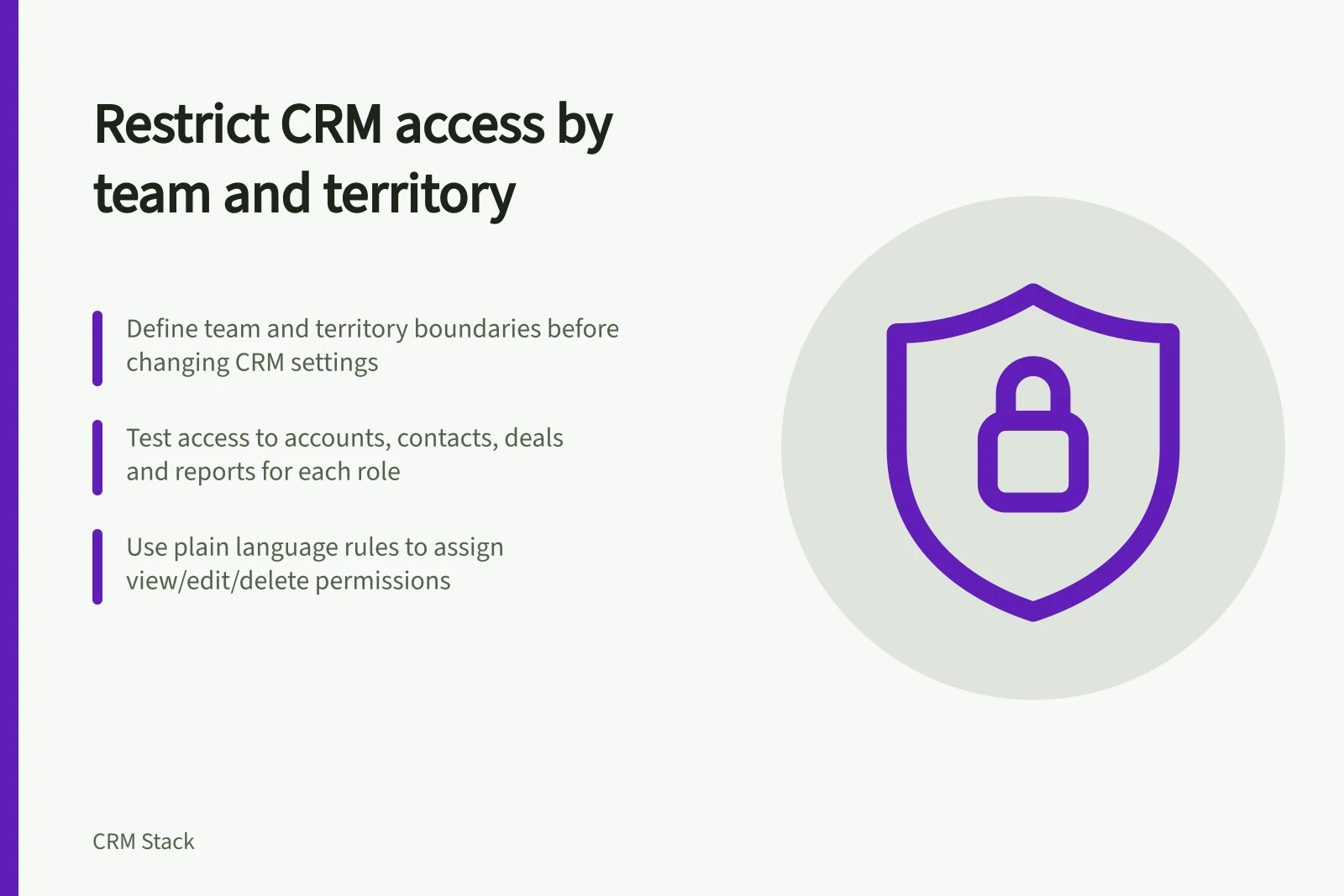
Define which records each team and territory should see before changing CRM settings. Then test access to account records and related contacts, deals, activities, reports and shared records; a territory label alone does not prove visibility is restricted.
Choose the boundary the work follows
A team suits people who collaborate on the same accounts, such as a sales pod and its manager. A territory suits account responsibility that follows a region, market or other assignment rule. The two can overlap: a specialist might assist several territories while remaining in one operational team.
Write the access rule in plain language before configuring it. For example: “Representatives can edit accounts assigned to their team; regional managers can view accounts in their region; the national support team can view selected service details.”
Decide separately who may create, delete, transfer or export records. Viewing an account and administering its ownership are different permissions.
| Situation | Access decision to make |
|---|---|
| Account moves to another territory | When does the former team lose access, and who takes open tasks? |
| Two teams share an account | Which team can edit the account and its opportunities? |
| Manager covers an absence | Is access inherited, shared for a period or granted individually? |
| National customer has local branches | Are branches separate records, and who sees the parent account? |
Setting up CRM access rules: step-by-step
- Define the boundary: team or territory?Match structure to workflow—teams for collaboration, territories for geographic or rule-based ownership
- Write access rules in plain languageE.g., ‘Regional managers can view accounts in their region’
- Assign permissions separately for create, edit, delete, transfer, exportThese are distinct actions requiring separate control
- Configure settings in your CRM (HubSpot, Salesforce, Dynamics 365)Use team permissions, sharing rules, or security roles as applicable
- Test across roles and scenariosInclude transfers, shared accounts, and overlapping memberships
- Review and maintain exception registerTrack one-off access grants with owner and review date
Check how the CRM combines grants
In HubSpot, go to Settings, then Users & Teams, select users and edit their permissions. Under CRM > CRM Objects, set view, edit or delete access for each object; “Their team's [object name]” limits access to records owned by members of the user’s team.
HubSpot team-only record permissions require a Professional or Enterprise subscription. A user on multiple teams can access records owned by members of any of those teams, and permission changes take effect after the user logs out and back in.
For example, if a HubSpot user belongs to Team A and Team B, team-only permissions allow access to records owned by members of either team. Adding Team B therefore expands access beyond Team A; test one record owned by each team before approving that overlap.
Salesforce names both original Territory Management and Enterprise Territory Management. Its territory-related sharing mechanisms include Territory Hierarchy, Sharing Rules and Territory Assignment Rules; original Territory Management can grant account access using criteria such as postal code or industry.
In Dynamics 365 Sales, teams share and collaborate on business records, and users can belong to multiple teams. Assigning a security role to a team gives its members the privileges associated with that role.
Check each user’s effective access, not only the setting intended to enforce the boundary. Another team membership or permission can change the result.
Test connected information as well as the account itself. Check whether a user blocked from an account can still reach relevant information through a report, shared deal, contact, attachment or search result.
CRM Access Configuration Requirements
- HubSpot team-only permissions require
- Professional or Enterprise subscription
- User on multiple teams can access
- Records owned by members of any team they belong to
- Permission changes in HubSpot take effect after
- User logs out and back in
- Salesforce territory types include
- Original Territory Management and Enterprise Territory Management
- Dynamics 365 Sales: assign privileges via
- Security roles assigned to teams
Test overlaps and transfers
Create test accounts within the user’s team, outside it, shared between teams and due to change territory. Sign in with representative, manager and specialist test roles, then check view, edit, delete and export behaviour where those actions are available.
For a Salesforce territory test, use an account whose postal code or industry meets a configured territory criterion. Verify its territory assignment and whether the relevant territory members can reach it, then repeat with an account outside that territory.
Check a report and at least one related record for each test role. Compare the results with the access rule, including records owned by members of every team the user belongs to.
Simulate a transfer by changing the account assignment, then inspect access from both the old and new teams. Verify that open opportunities and dated tasks have a responsible owner, and document any intentional access retained by the old team.
Review the rules when territories, team membership or management reporting lines change. Keep an exception register with an owner and review date so one-off collaboration does not become an unnoticed permanent grant.